Nothing leaves this Mac

Your meetings are transcribed on the Neural Engine — and never uploaded.

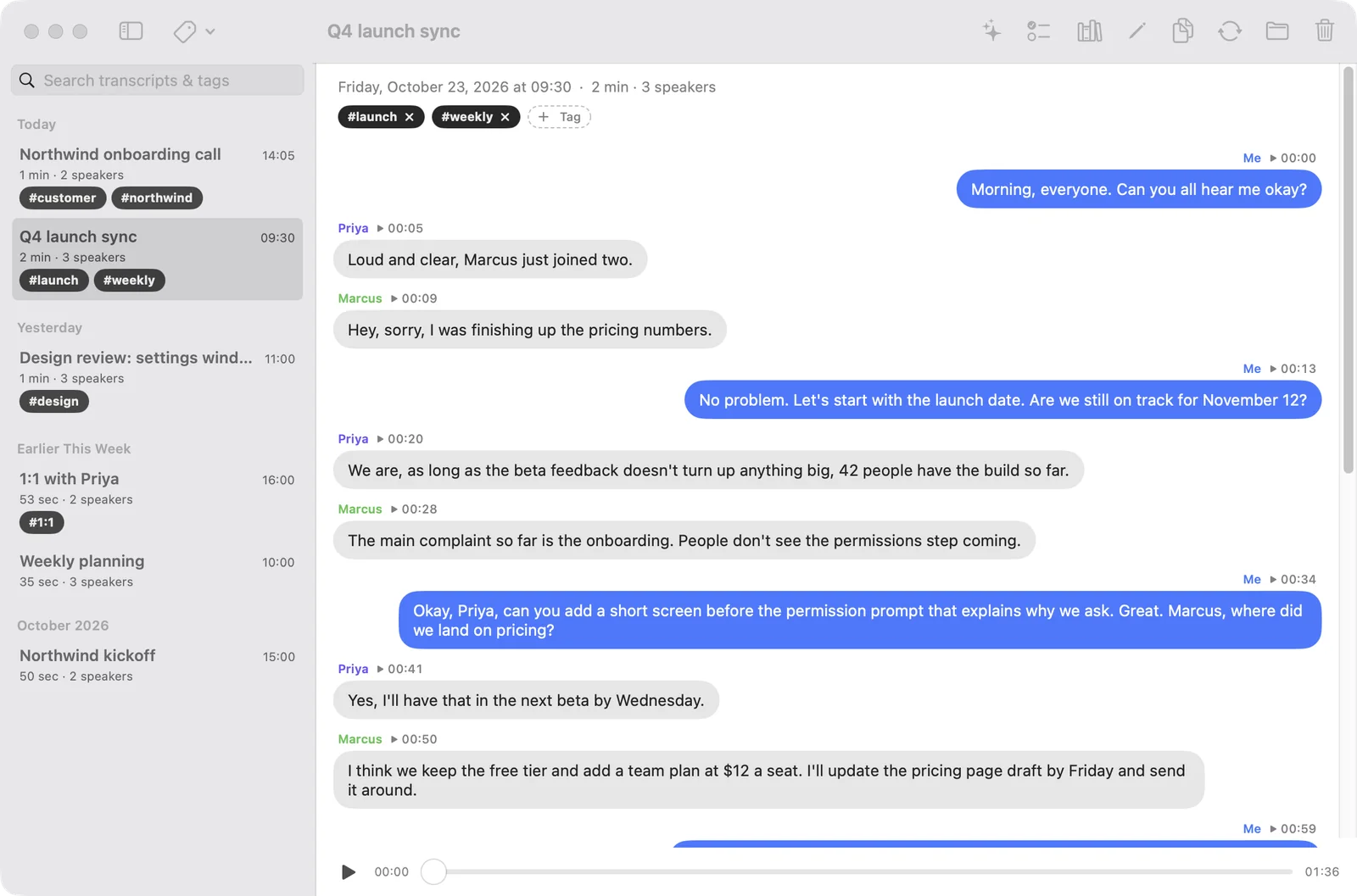
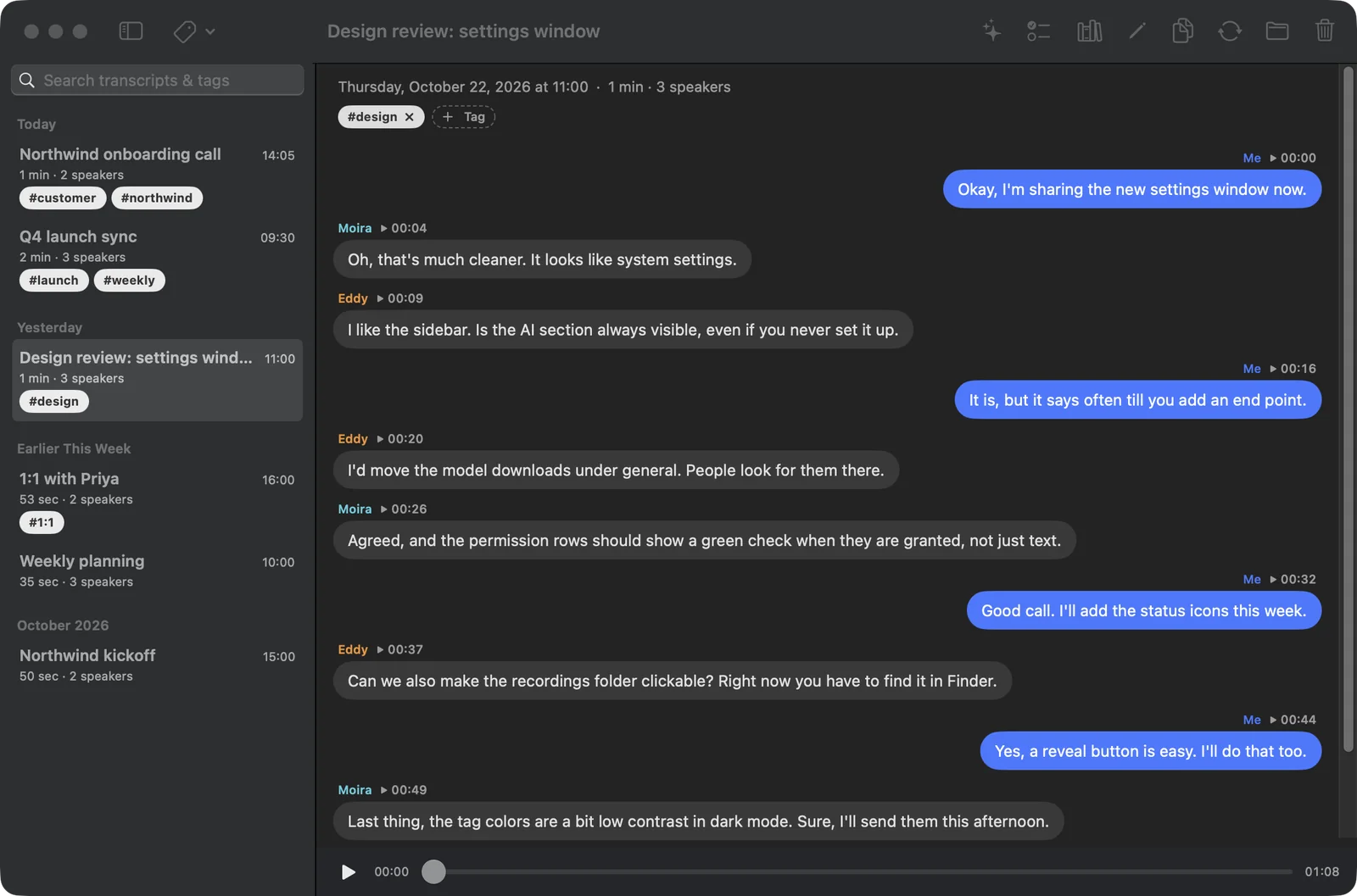
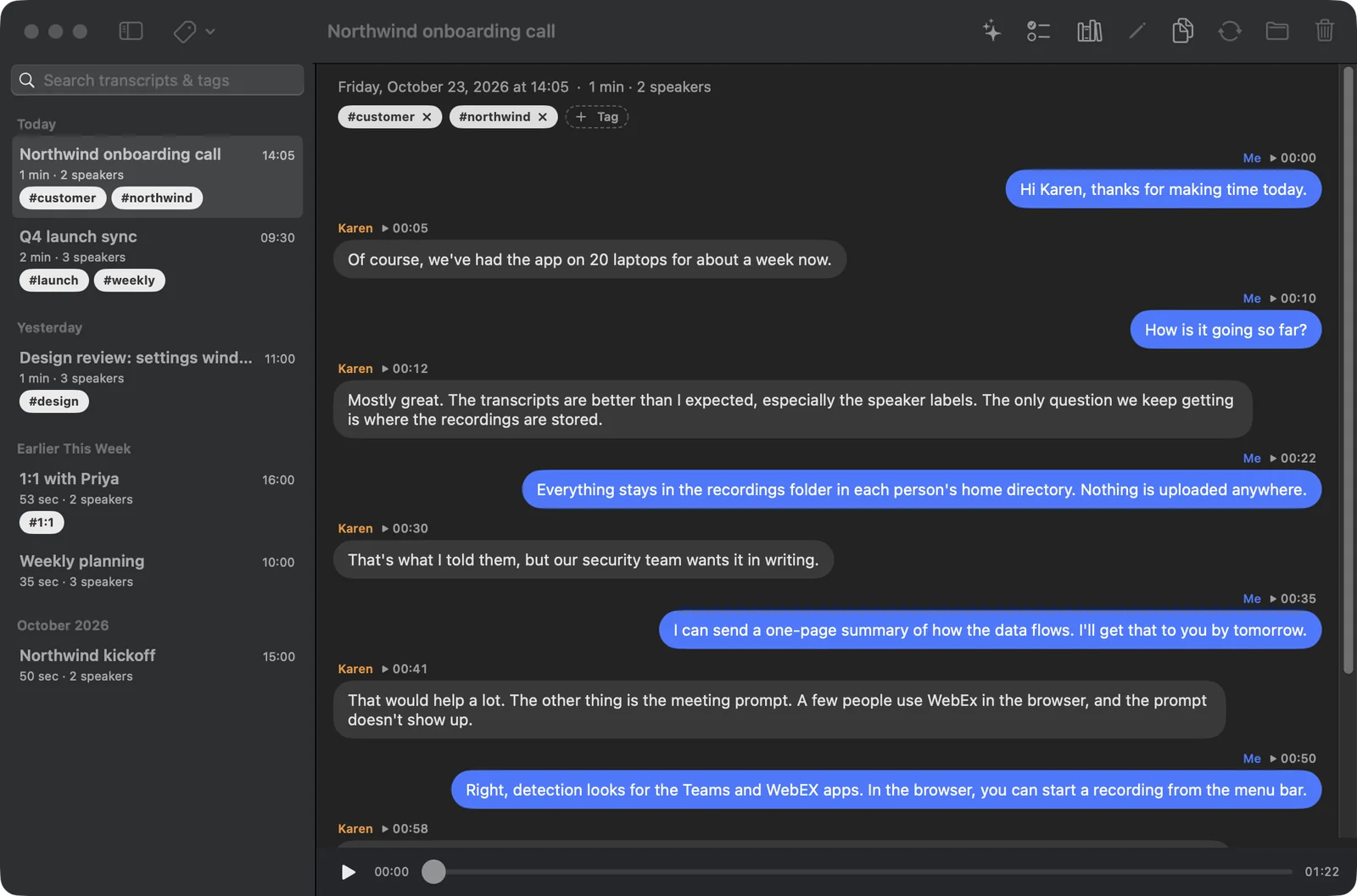
Simple Meeting Recorder captures both sides of a call — your microphone and the system audio from everyone else — and turns them into an accurate, speaker-labeled transcript. Every step runs locally. No cloud, no account, no upload.

data-flow · audio in → transcript out ● local only
YOUR MAC · ~/Recordings Microphone stream: “Me” System audio stream: “Them” Neural Engine FluidAudio · CoreML live + polish passes on-device diarization Transcript Me · Speaker 1 · 2 … interleaved · labeled Saved locally meeting-…/mix.m4a me.m4a · them.m4a unreachable The cloud a server somewhere no upload · no account · no telemetry two separate streams

What it does

Both sides of the call. Transcribed where it happens.

Four things do the real work — everything else is just staying out of your way.

01 / capture

Dual-stream capture

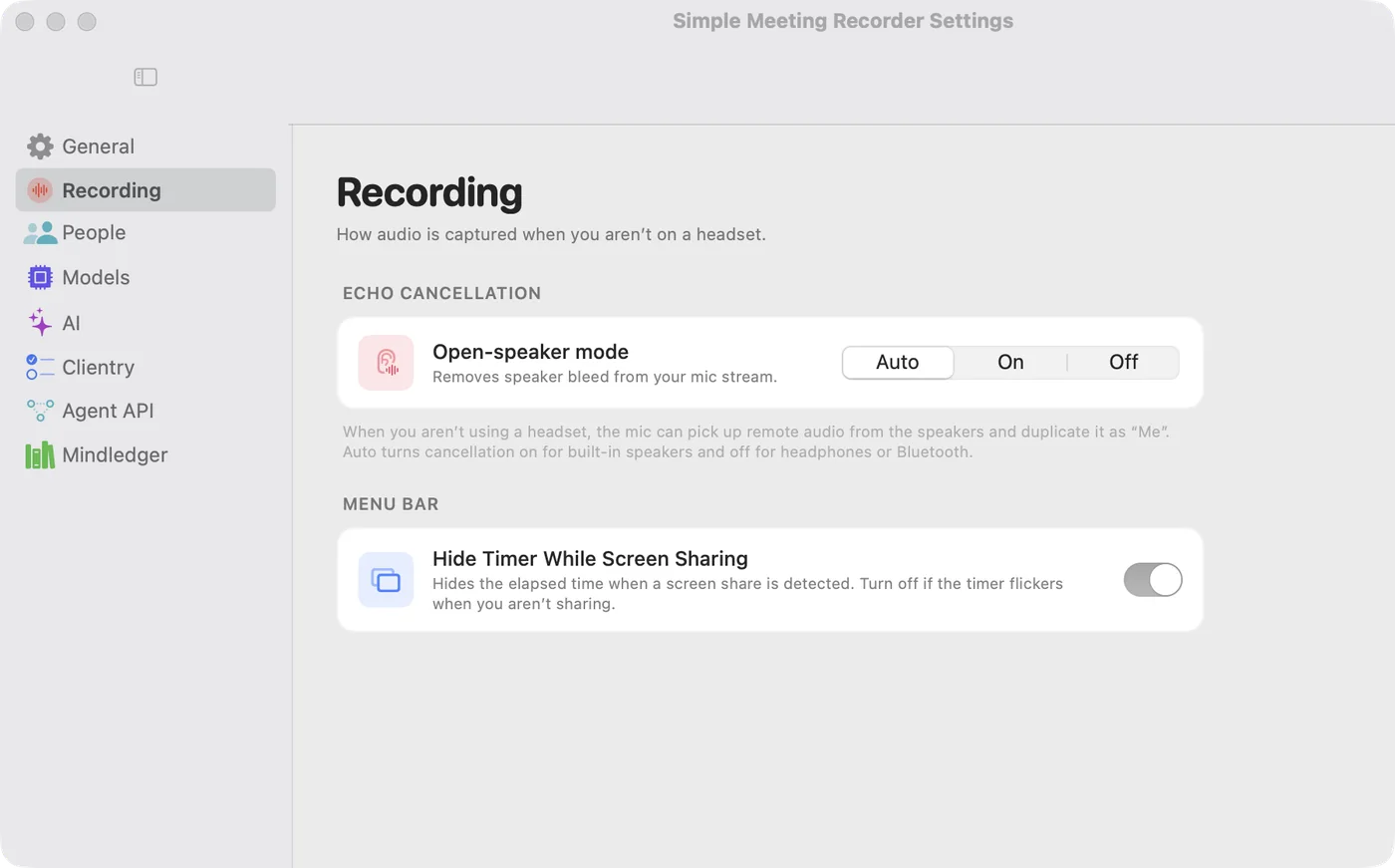
It records two separate streams — your microphone as Me, and your Mac's system audio (everyone else) as Them. Each is transcribed on its own, then interleaved into one clean, speaker-labeled conversation.

~/Recordings/meeting-2026-07-01_14-32/ ├─ mix.m4a combined audio ├─ me.m4a your mic ├─ them.m4a system audio └─ transcript.txt interleaved
02 / transcription

On-device transcription

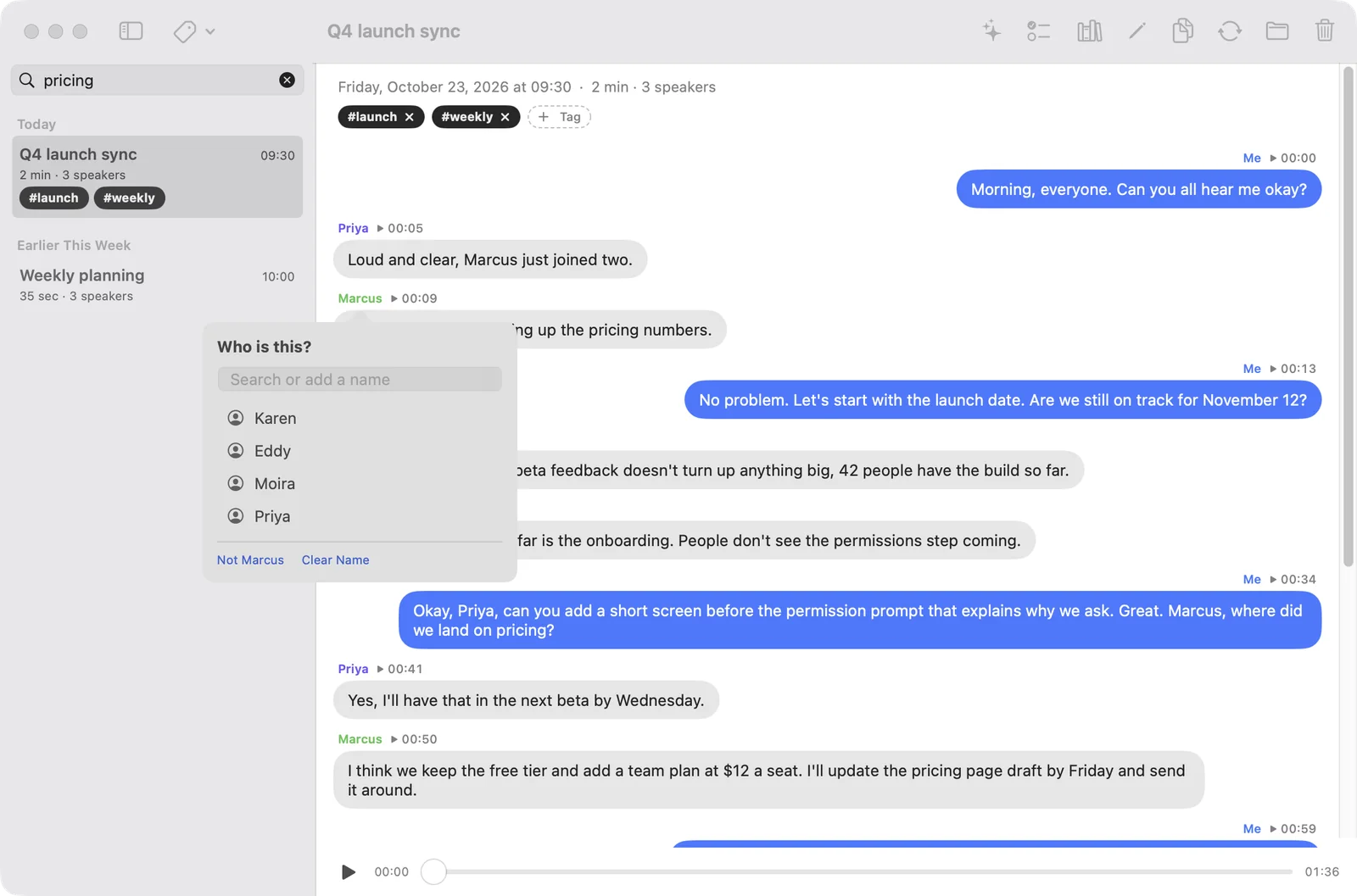
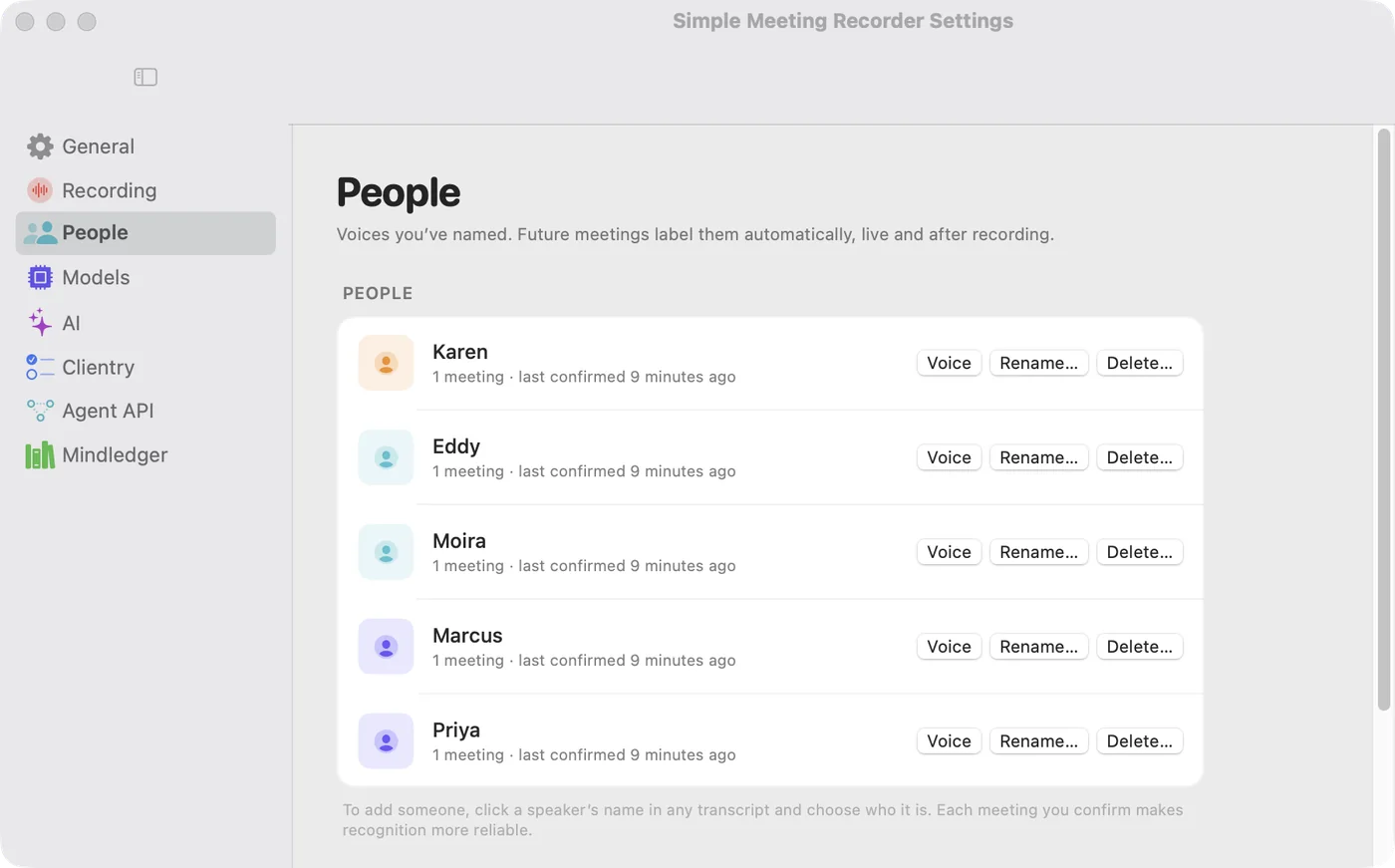
Speech-to-text and speaker diarization run locally on the Apple Neural Engine via FluidAudio and CoreML. Your voice is always Me; remote voices become Speaker 1, Speaker 2, and so on.

03 / detection

Auto-detect meetings

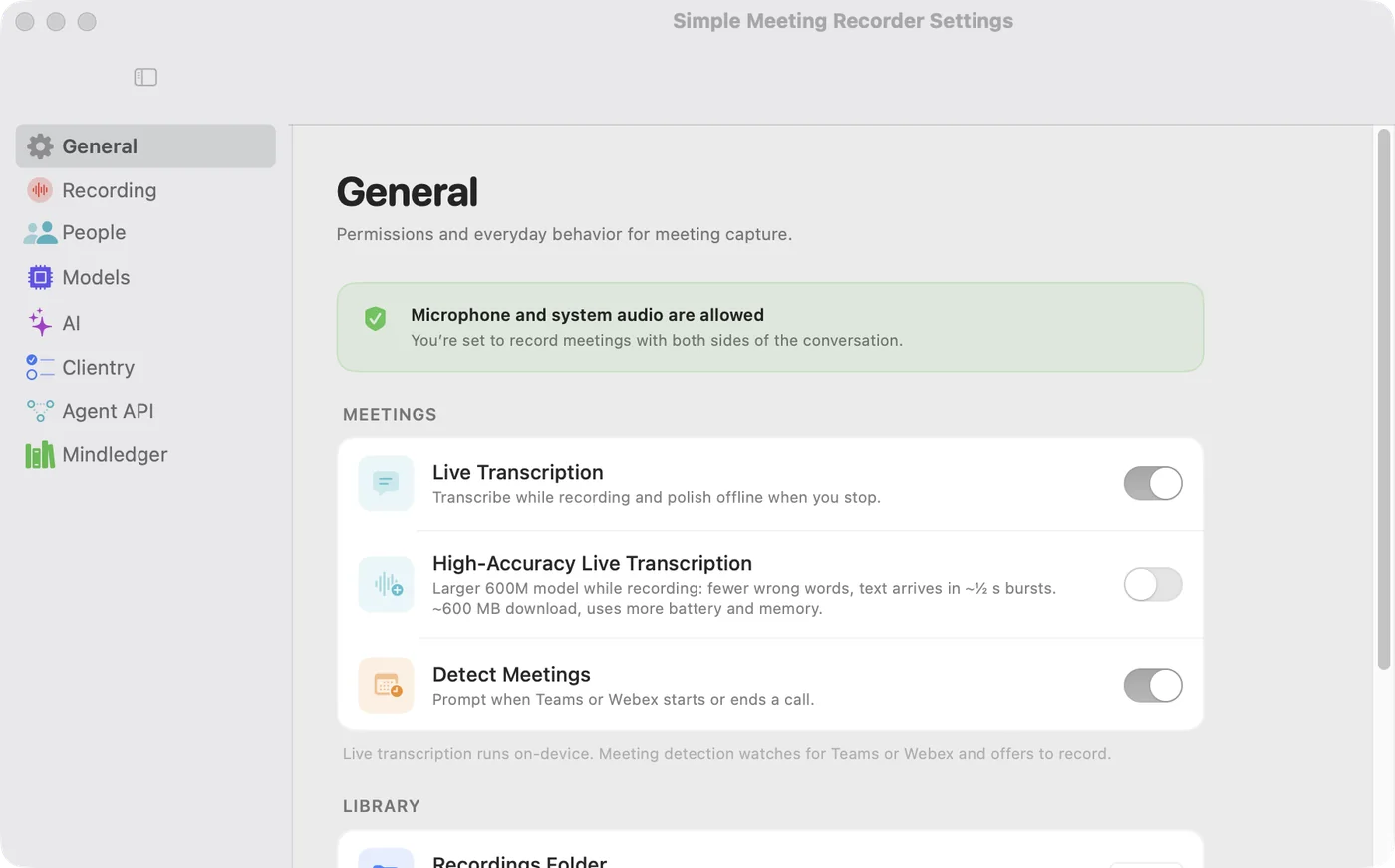
When your mic goes live and Microsoft Teams or Webex is frontmost, it quietly asks “Record this meeting?” Detection reads Core Audio device state — not audio — so it needs no microphone permission to notice.

04 / ask

Ask AI about a meeting

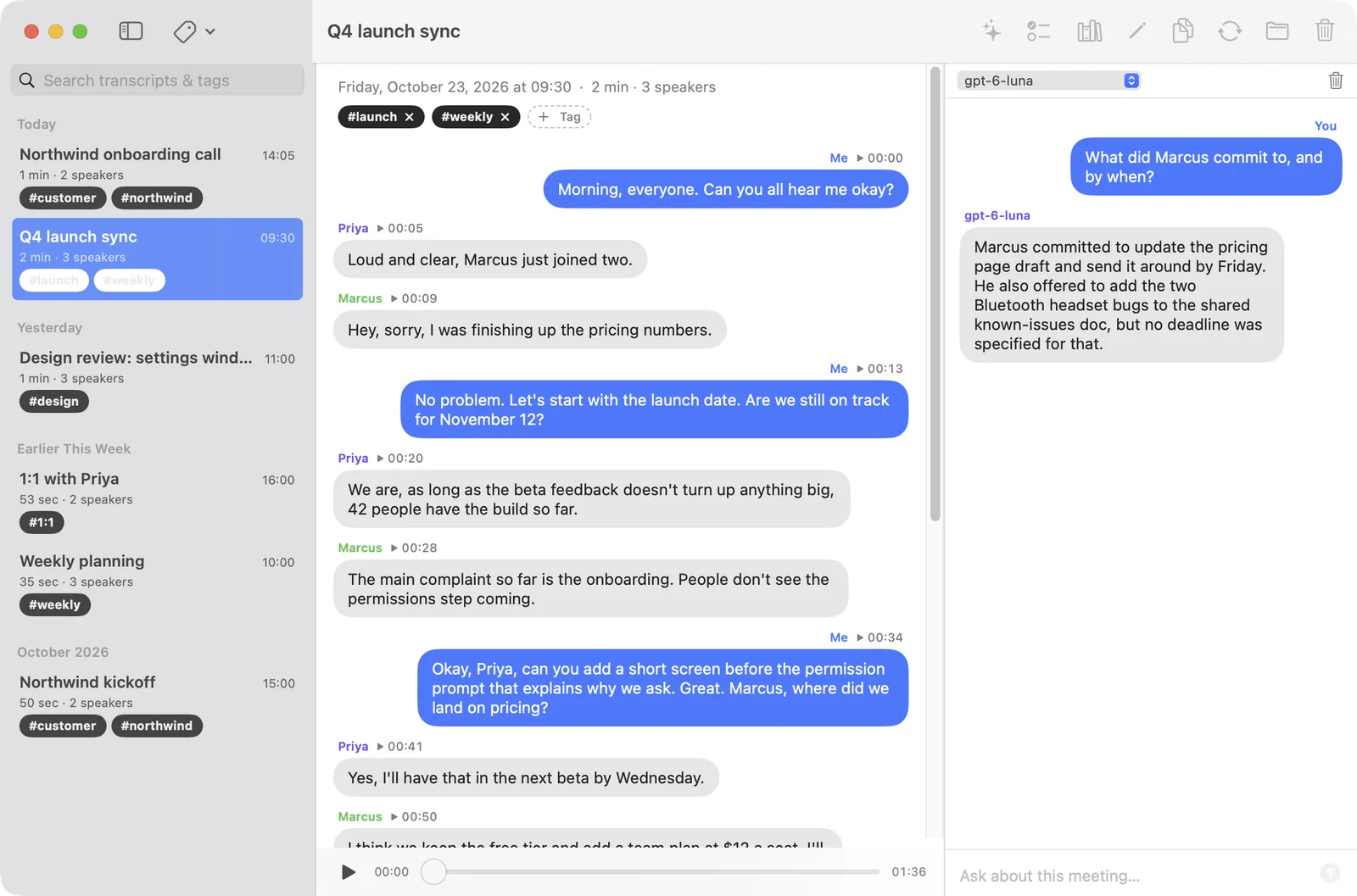
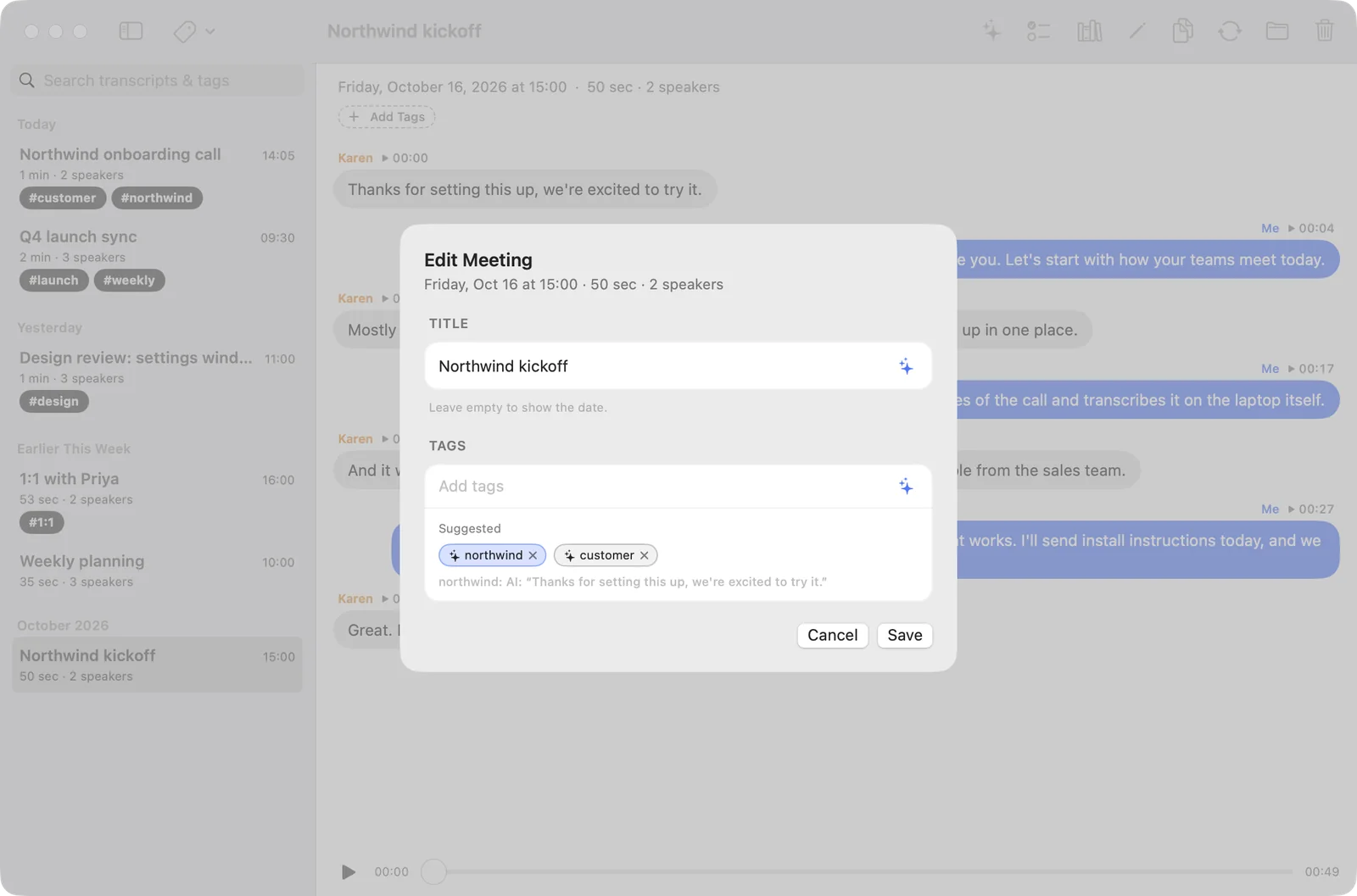
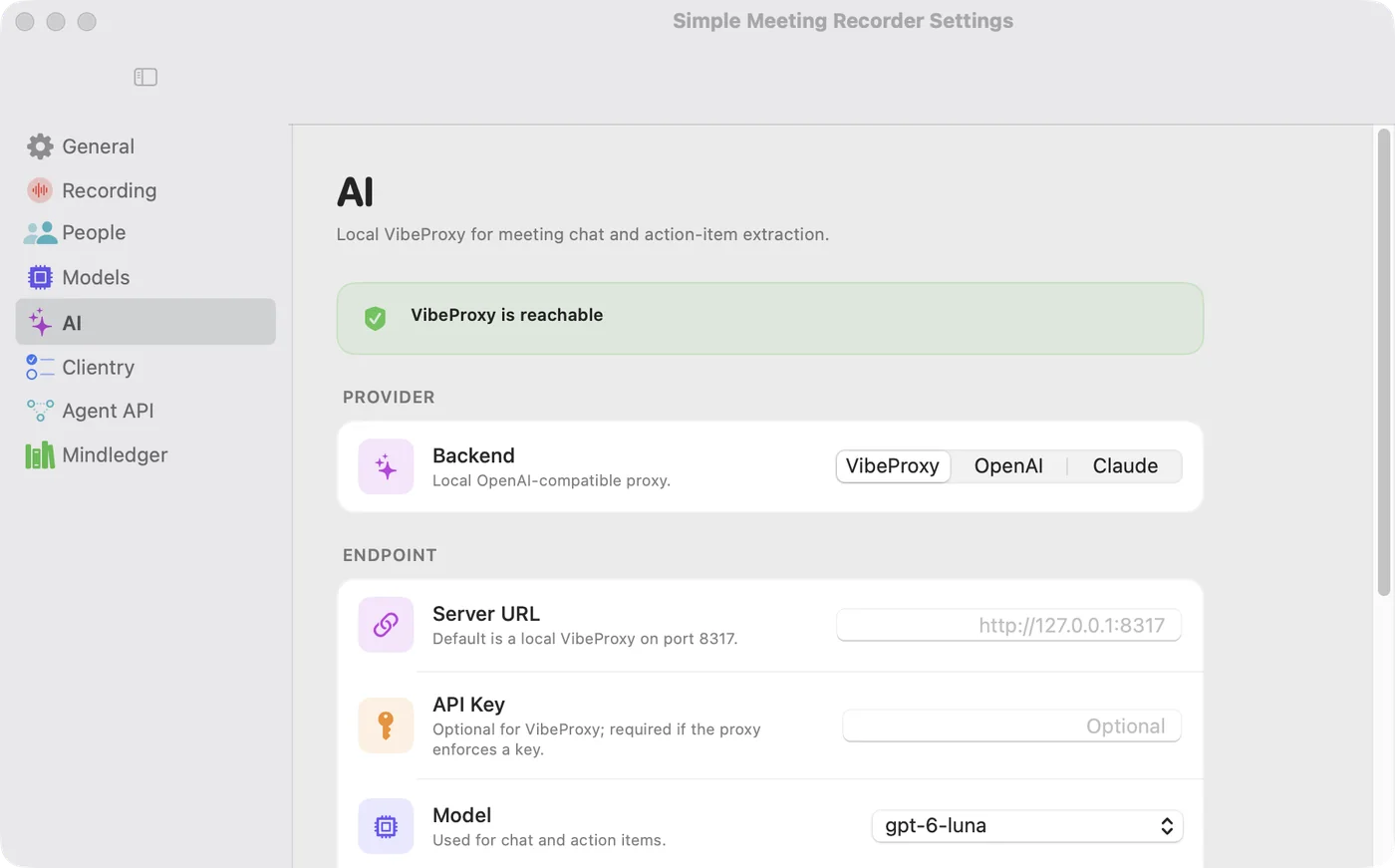
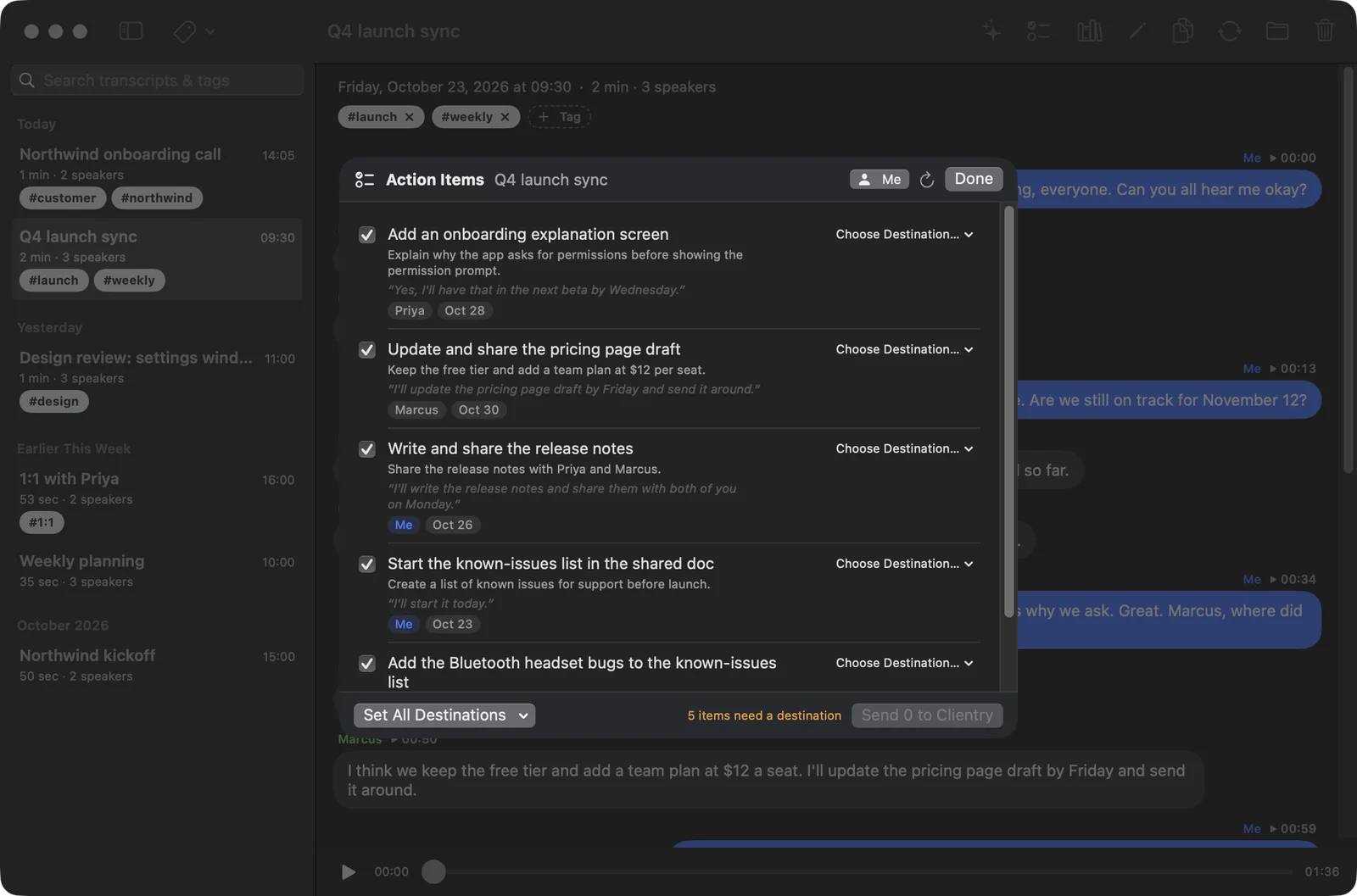
An optional chat panel next to each transcript. Point it at an OpenAI-compatible endpoint running on your Mac — VibeProxy, LM Studio, Ollama — and ask for the summary, the action items, the thing you half-remember someone saying. Nothing is sent anywhere until you ask, and only to the endpoint you chose.

Two passes

Live while you talk. Polished when you stop.

A realtime pass keeps up with the meeting turn-by-turn. When you stop, a larger offline model re-transcribes the separated streams and replaces the live text with a corrected, properly diarized version.

LIVE streaming · realtime while recording
MeCan everyone see the shared screen?
ThemYeah, it's coming through fine on my end.
MeGreat — let's start with the capture pipeline.
Themso the two streams are kept sep—
appears turn-by-turn · lower-latency model · not yet corrected
POLISH offline · 600M model after you stop
MeCan everyone see the shared screen?
Speaker 1Yeah, it's coming through fine on my end.
MeGreat — let's start with the capture pipeline.
Speaker 2So the two streams are kept separate the whole way through — that's the point.
re-transcribed from me.m4a + them.m4a · offline diarization · replaces the live pass

Under the hood

How it actually works.

From the moment you hit record to the transcript on disk — every step, and where it runs.

  1. Capture — two streams, kept apart

    Your microphone is recorded as me.m4a and your Mac's system audio — everyone else on the call — as them.m4a, via a Core Audio process tap. A combined mix.m4a is written alongside.

  2. Live pass — while you talk

    A streaming speech model runs on the Apple Neural Engine (FluidAudio · CoreML) and transcribes each stream in near-realtime, interleaving turns in the transcript window as they happen.

  3. Polish pass — when you stop

    A larger 600M offline model re-transcribes the separated files and runs offline speaker diarization. The live text is replaced with a corrected transcript: you are always Me, remote voices become Speaker 1, 2, …

  1. Storage — plain files, one folder per meeting

    Everything lands in ~/Recordings/meeting-…/ as ordinary m4a and text files. No database, no library, no export step. Delete the folder and it's gone.

  2. Detection — without listening

    Meeting detection reads Core Audio device state (“some app is using the mic”) plus which app is frontmost (Teams, Webex). It never touches audio to notice a meeting, so detection needs no microphone permission.

  3. Updates — signed and notarized

    Releases are Developer ID–signed and notarized by Apple, and the app keeps itself current via Sparkle from this site's appcast.xml. The only other network traffic is the one-time model download.

Requirements

What it needs to run.

macOS
15 Sequoia or later
built and tested against the current OS
Silicon
Apple silicon
transcription runs on the Neural Engine
Permissions
Mic · System audio
both requested on your first recording
Install
Notarized .app
download, unzip, drag to Applications

Download

Download it, then run it.

A signed, notarized .app in a small zip. No installer, no account — and once it's running it keeps itself up to date via Sparkle.

  1. Download

    Grab SimpleMeetingRecorder.zip — it always points at the latest release.

  2. Install

    Unzip it and drag SimpleMeetingRecorder.app into Applications, then open it. It appears in your menu bar — no Dock icon.

  3. First run

    The transcription models download once from Hugging Face; after that everything works offline.

  4. Permissions

    You grant Microphone and System Audio Recording on your first recording — macOS asks for both.

SimpleMeetingRecorder.zip
# latest release
version   1.0
size      ~3.5 MB
✓ Developer ID signed
✓ notarized by Apple
✓ auto-updates via Sparkle
/releases/SimpleMeetingRecorder.zip
Download
Microphone System audio recording

The one thing that comes over the network: on first run the transcription models are downloaded once from Hugging Face. That's the models coming down to your Mac — never your audio going up. After that, recording and transcription work entirely offline, and everything stays in ~/Recordings. The optional AI chat is the only feature that ever sends a transcript anywhere — and only to the local endpoint you configure, only when you ask it a question.